How to
Create Categories and items
Use these steps to create categories, add items, and set up modifiers for your menu.
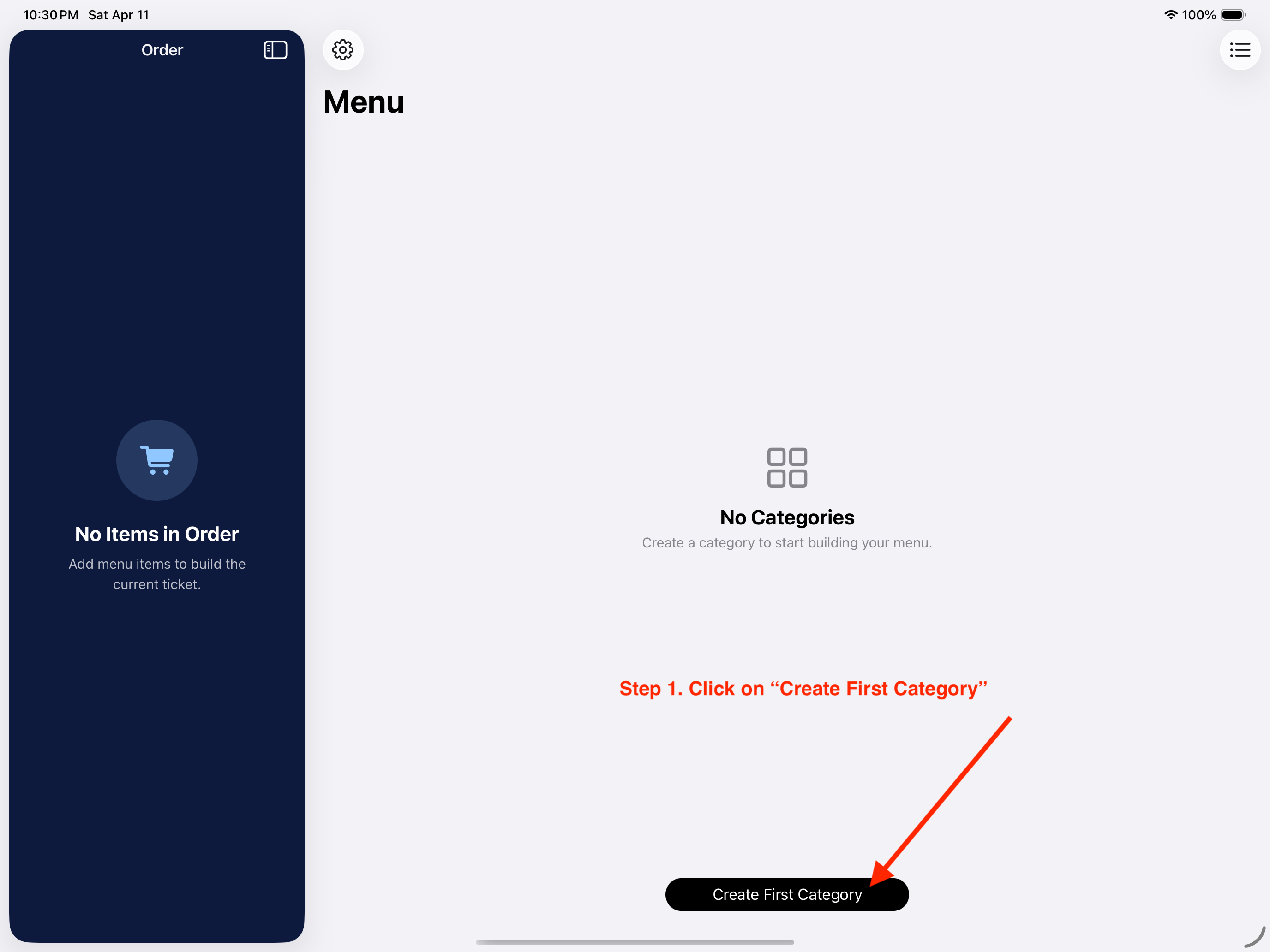
Step 1. Click on "Create First Category"
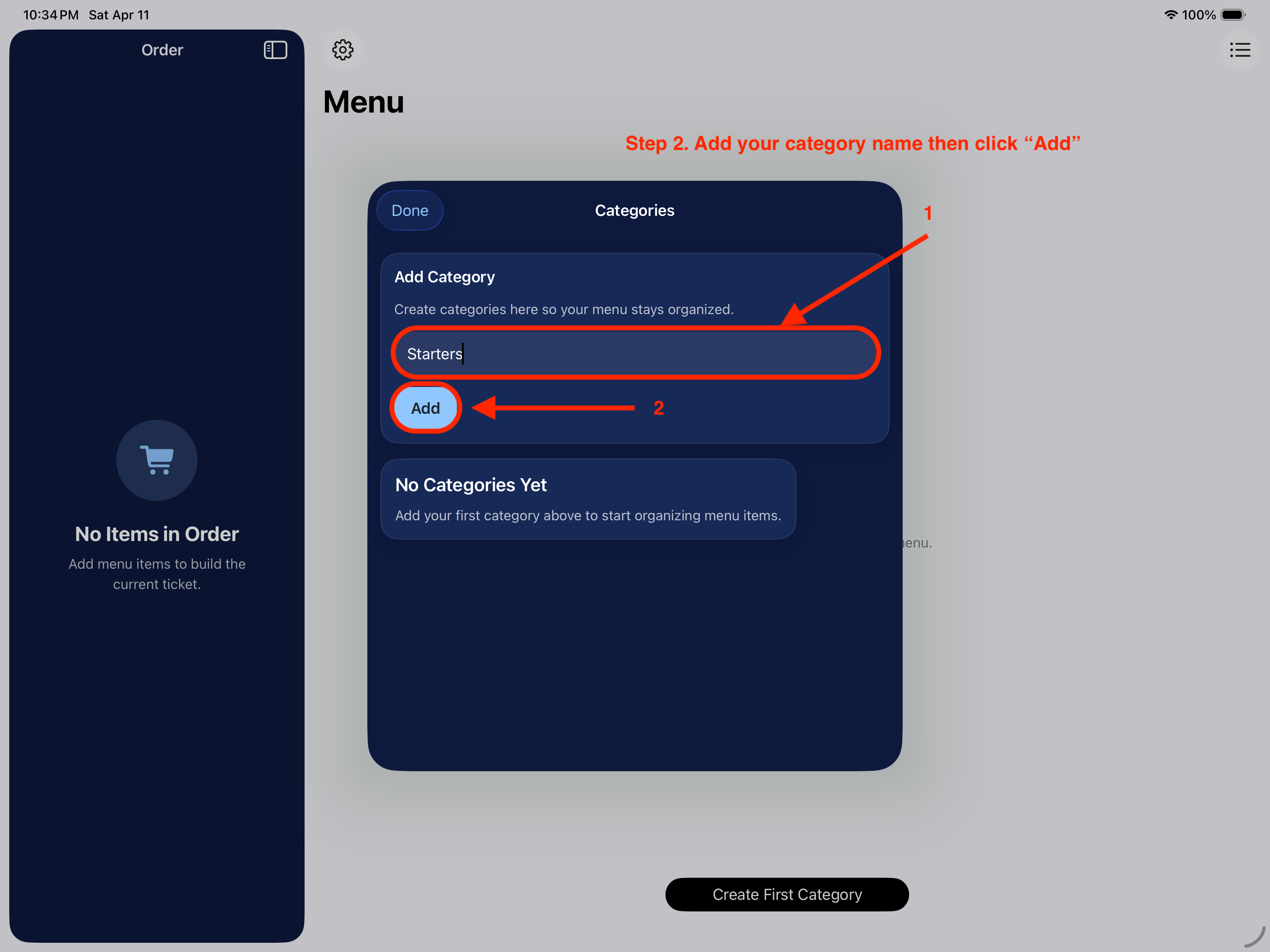
Step 2. Add your category name then click "Add"
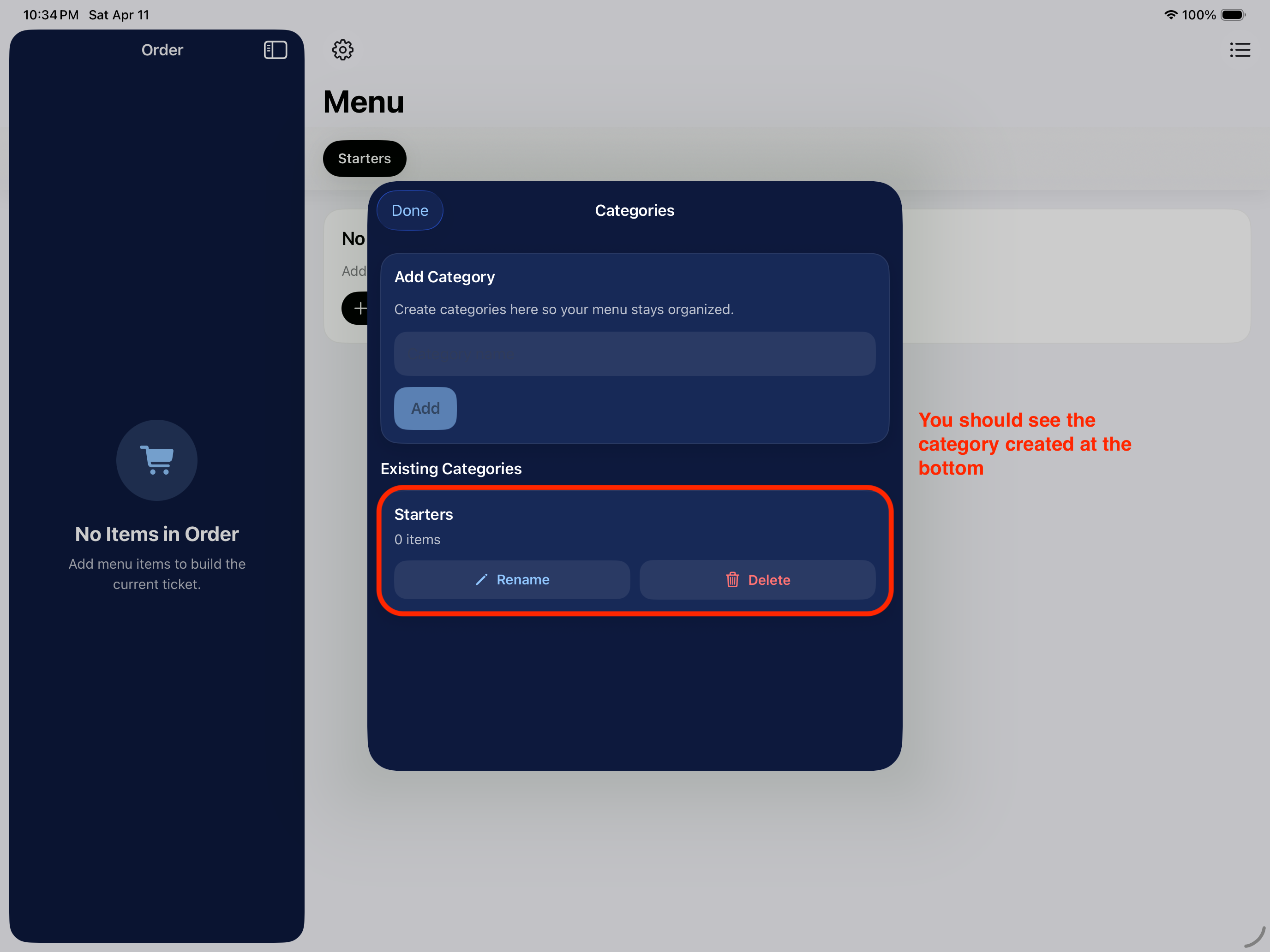
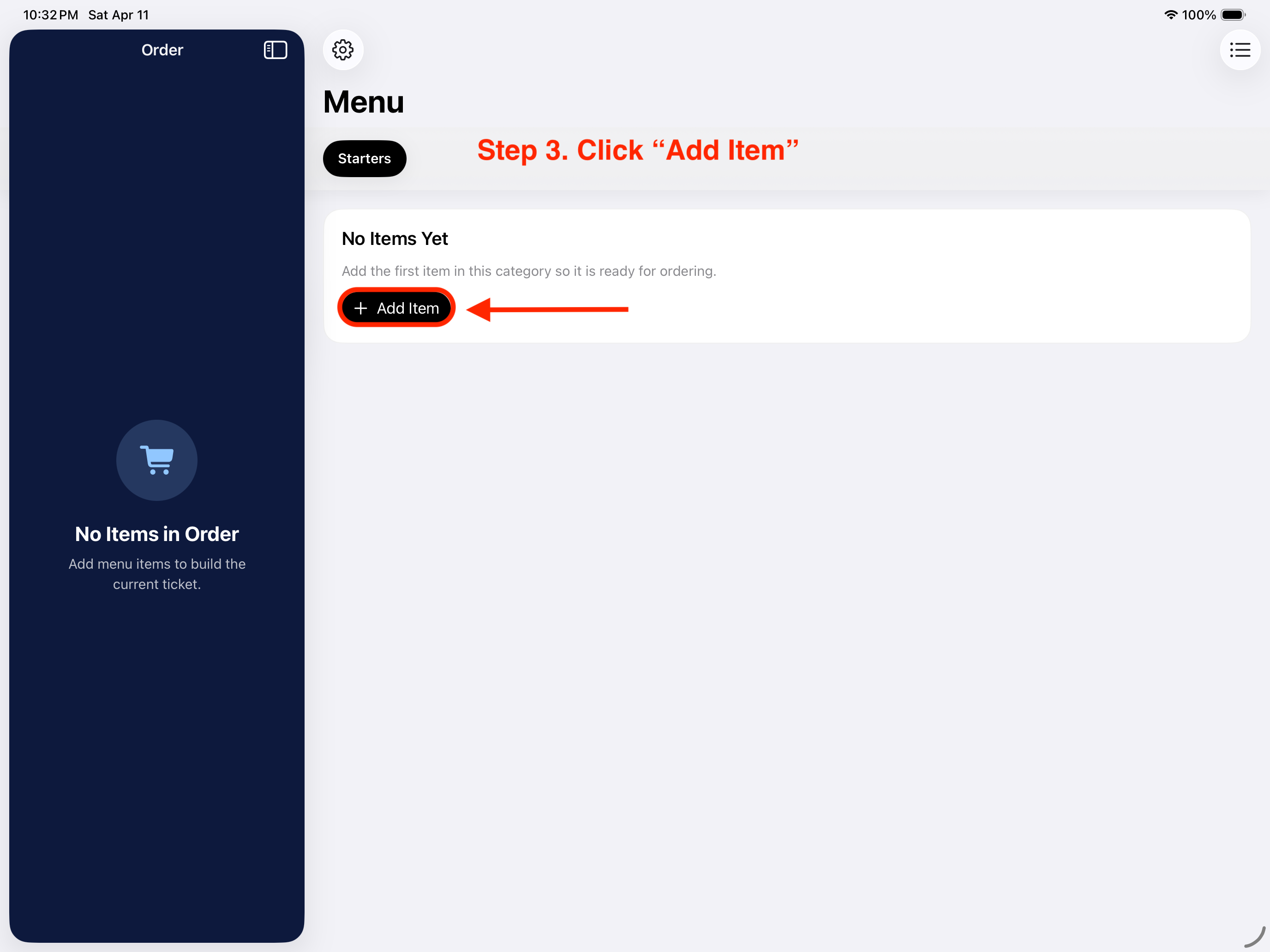
Step 3. Click "Add Item"
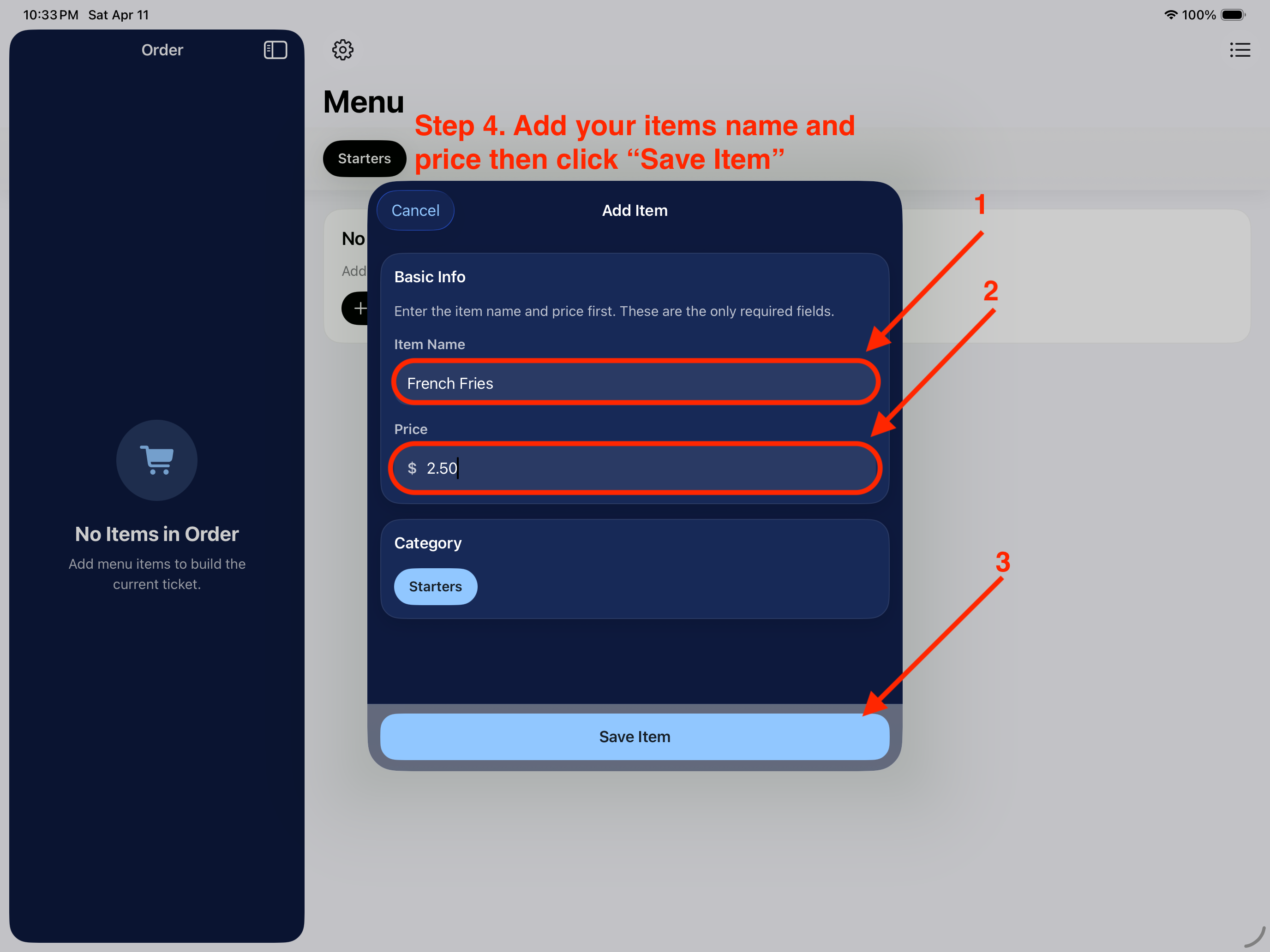
Step 4. Add your items name and price then click "Save Item"
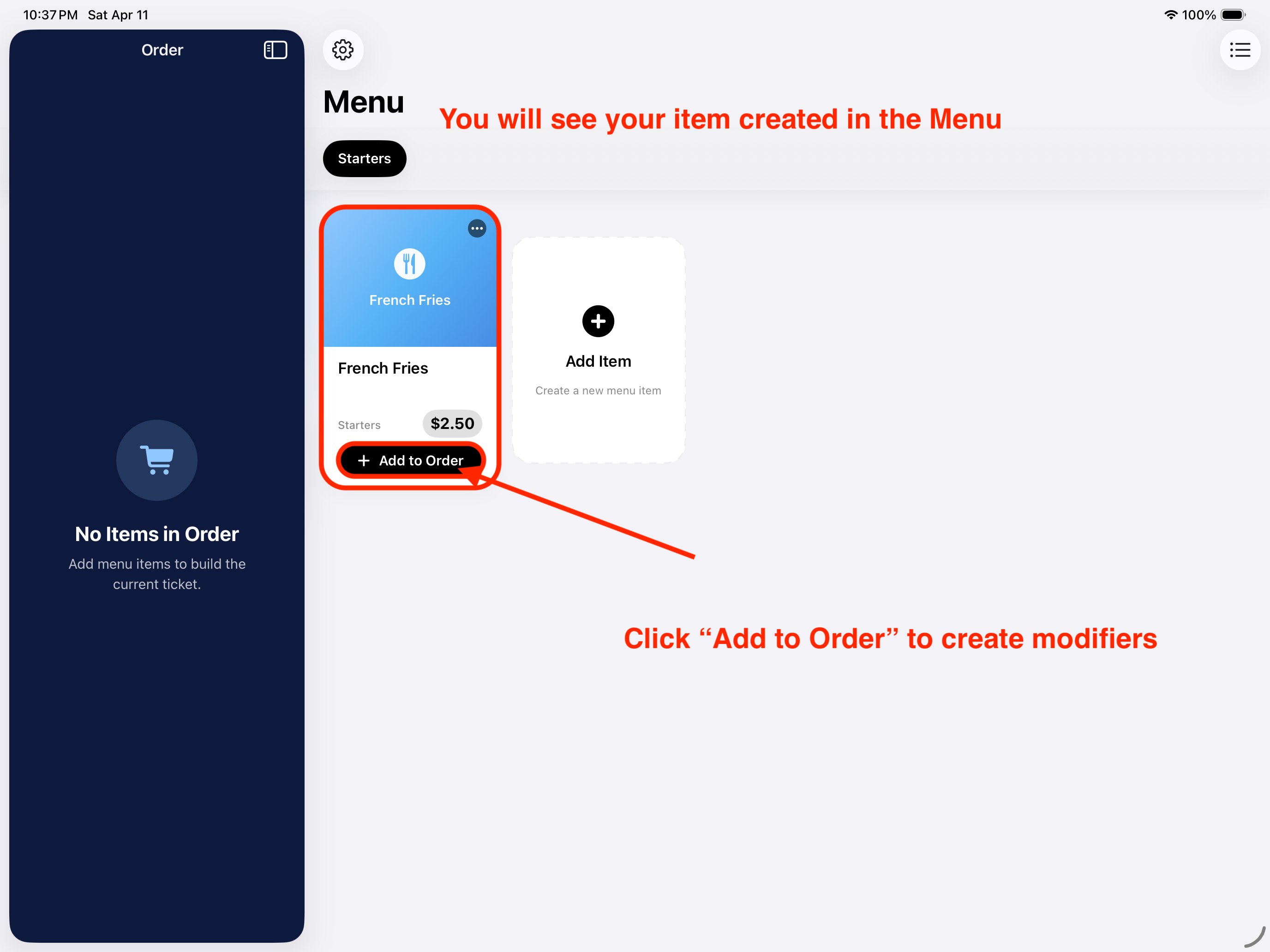
You will see your item created in the Menu. Click "Add to Order" to create modifiers
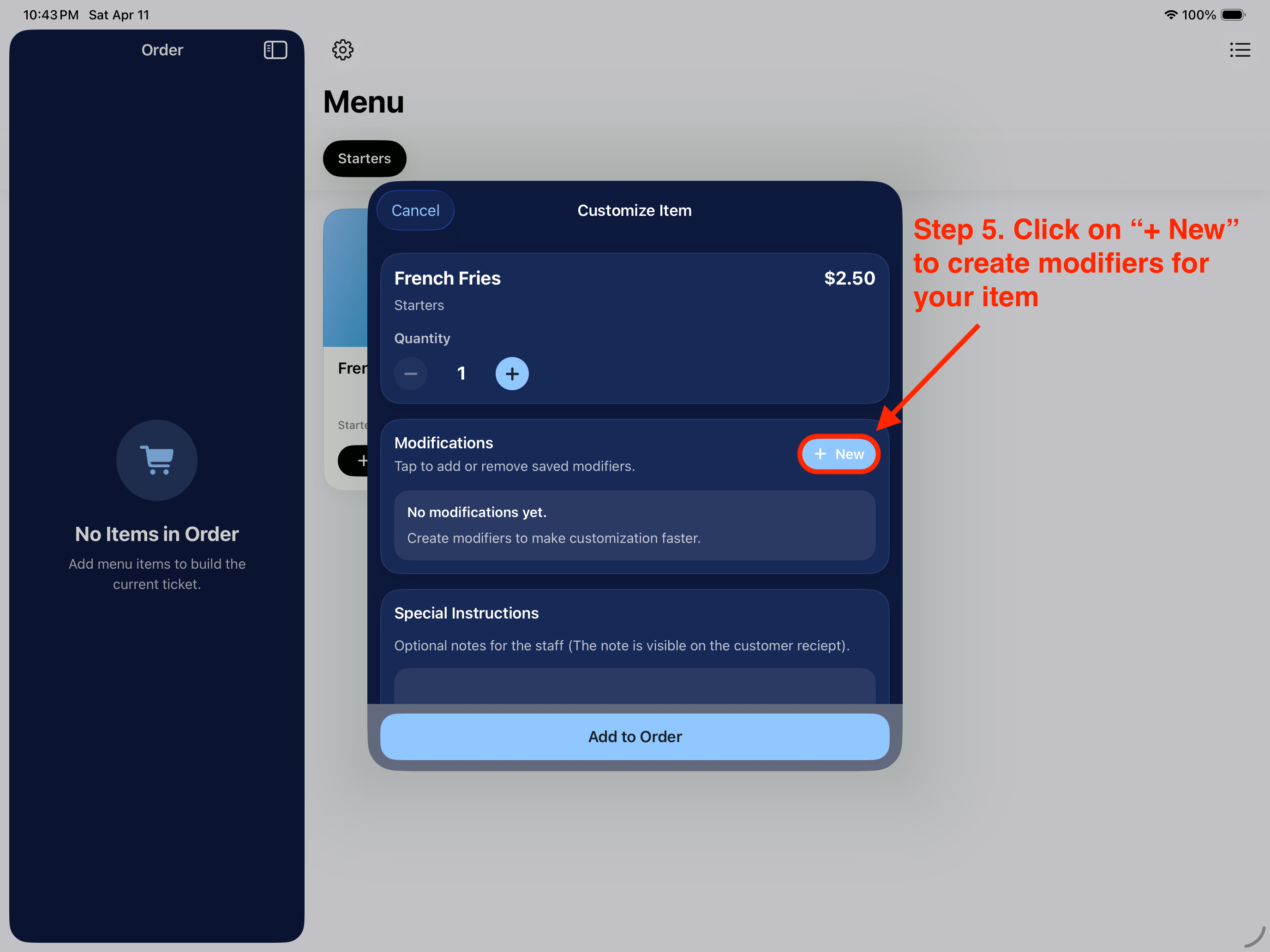
Step 5. Click on "+ New" to create modifiers for your item
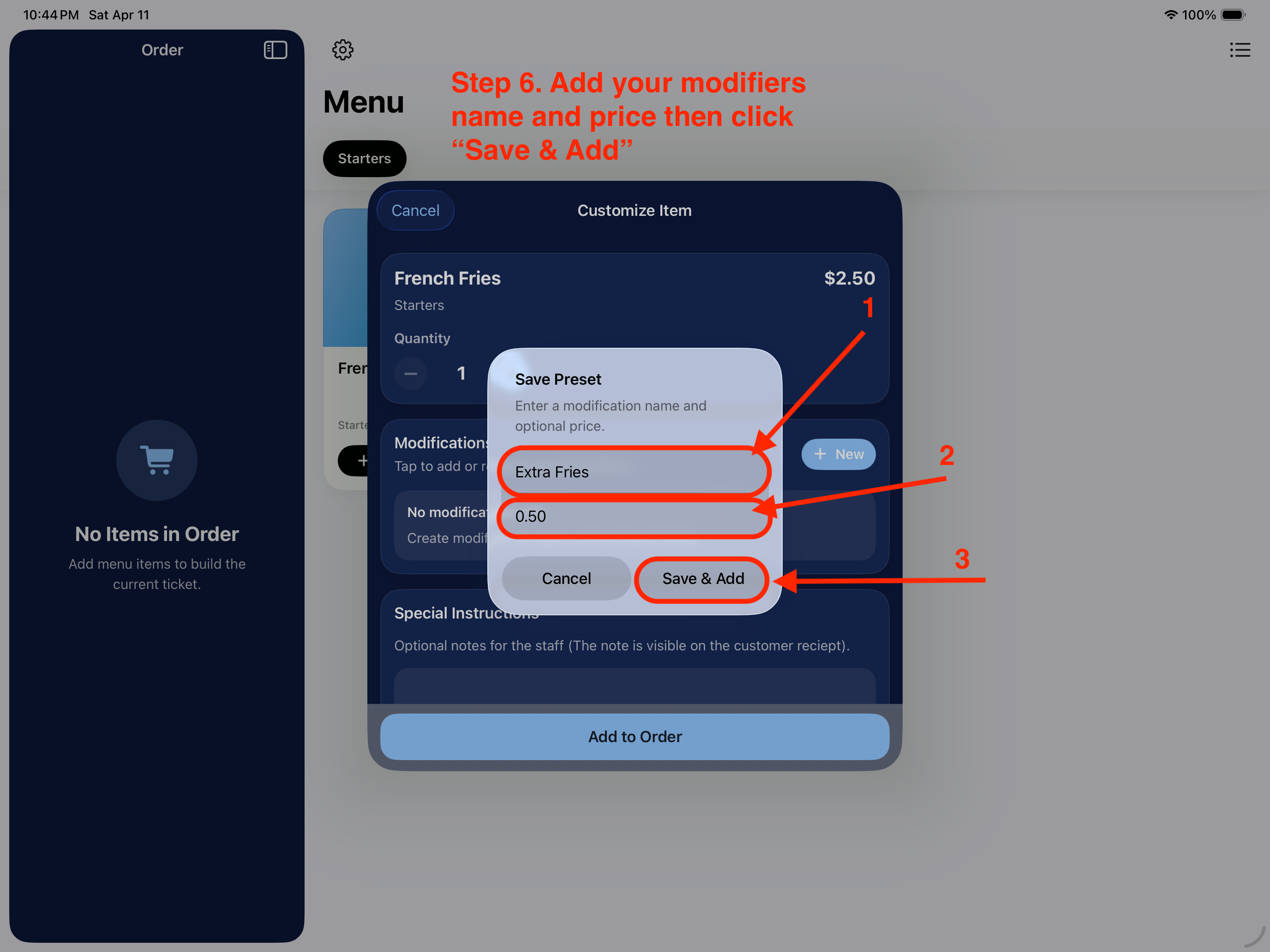
Step 6. Add your modifiers name and price then click "Save & Add"
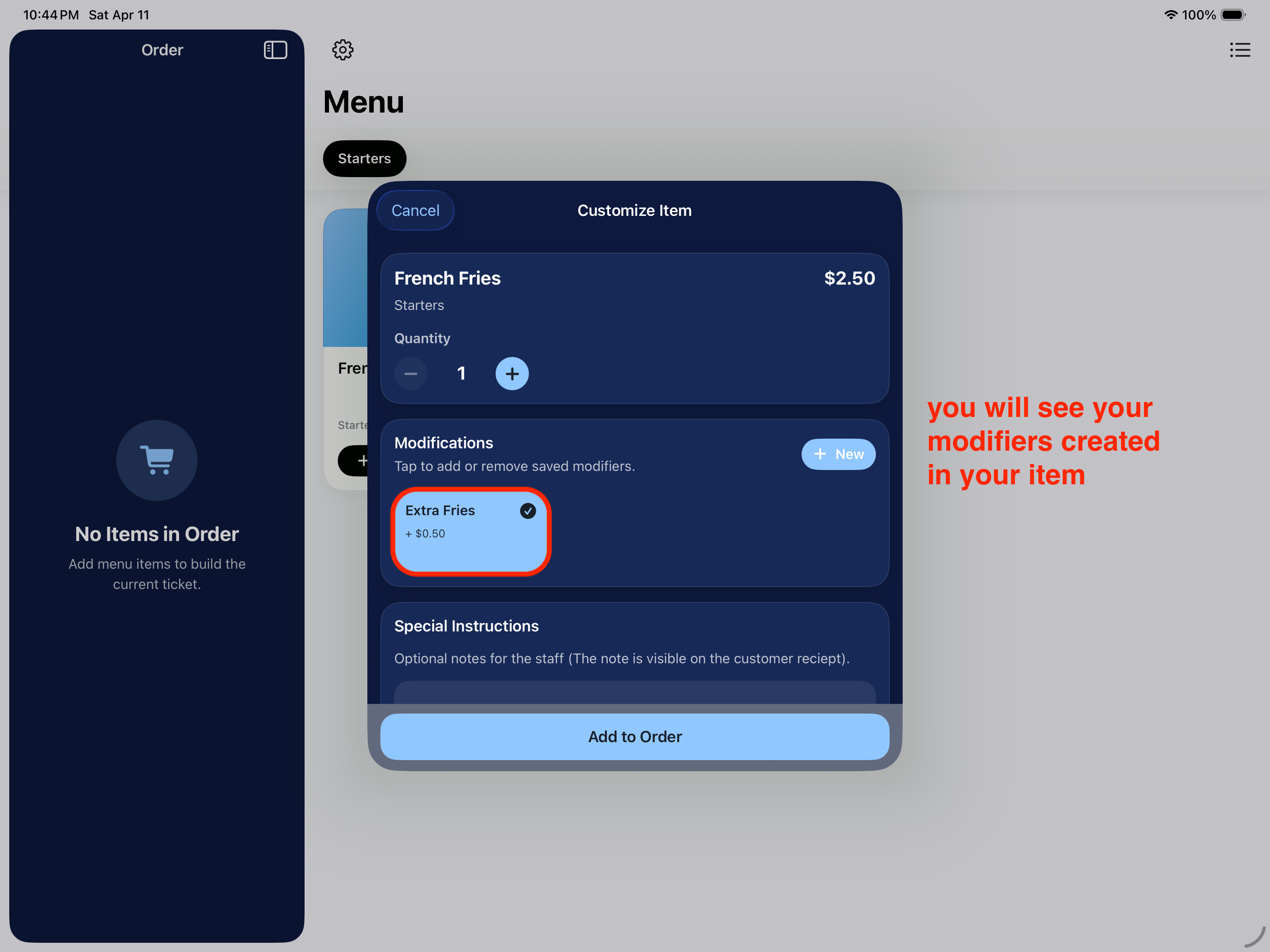
You will see your modifiers created in your item
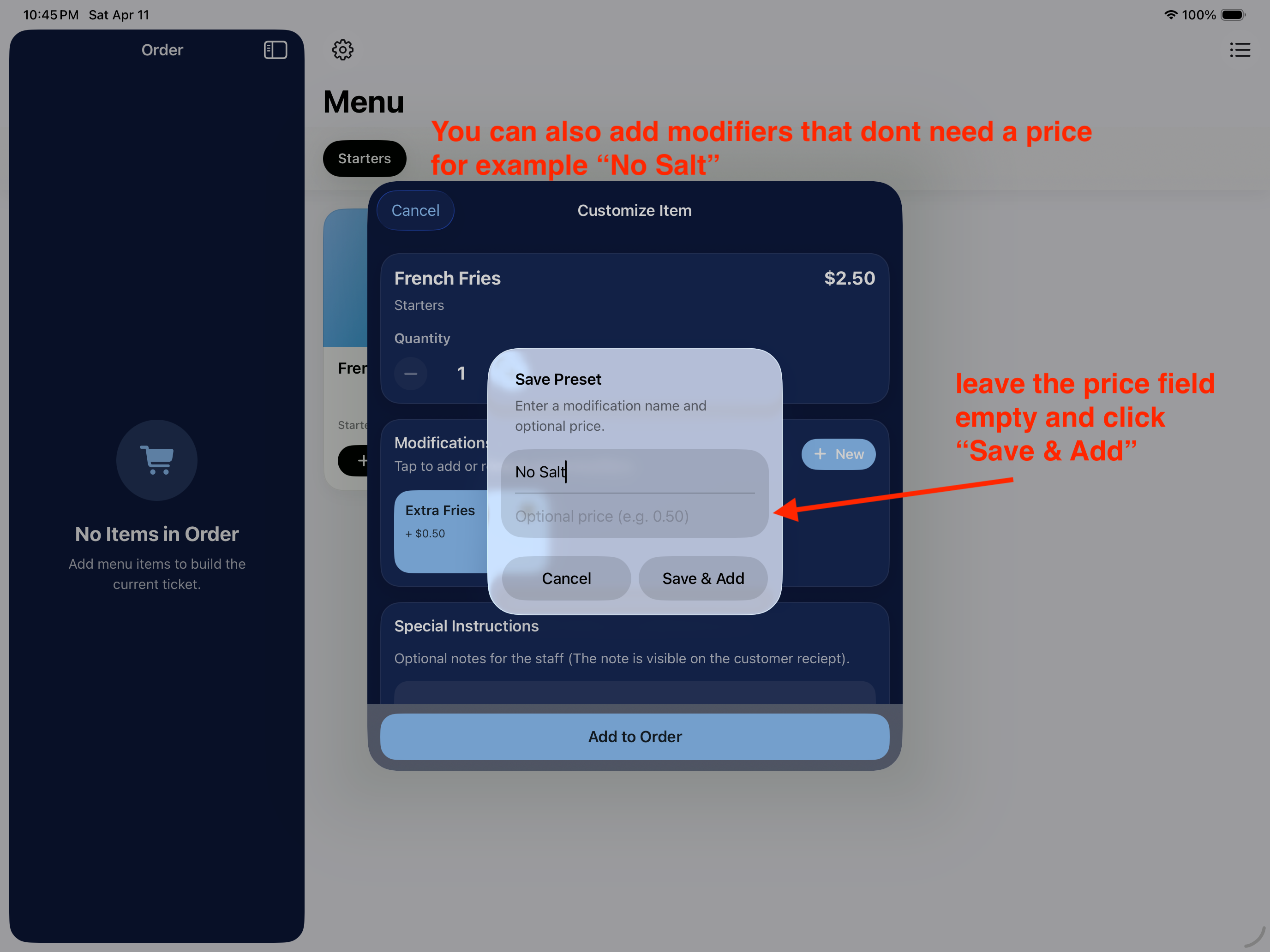
You can also add modifiers that dont need a price for example "No Salt"
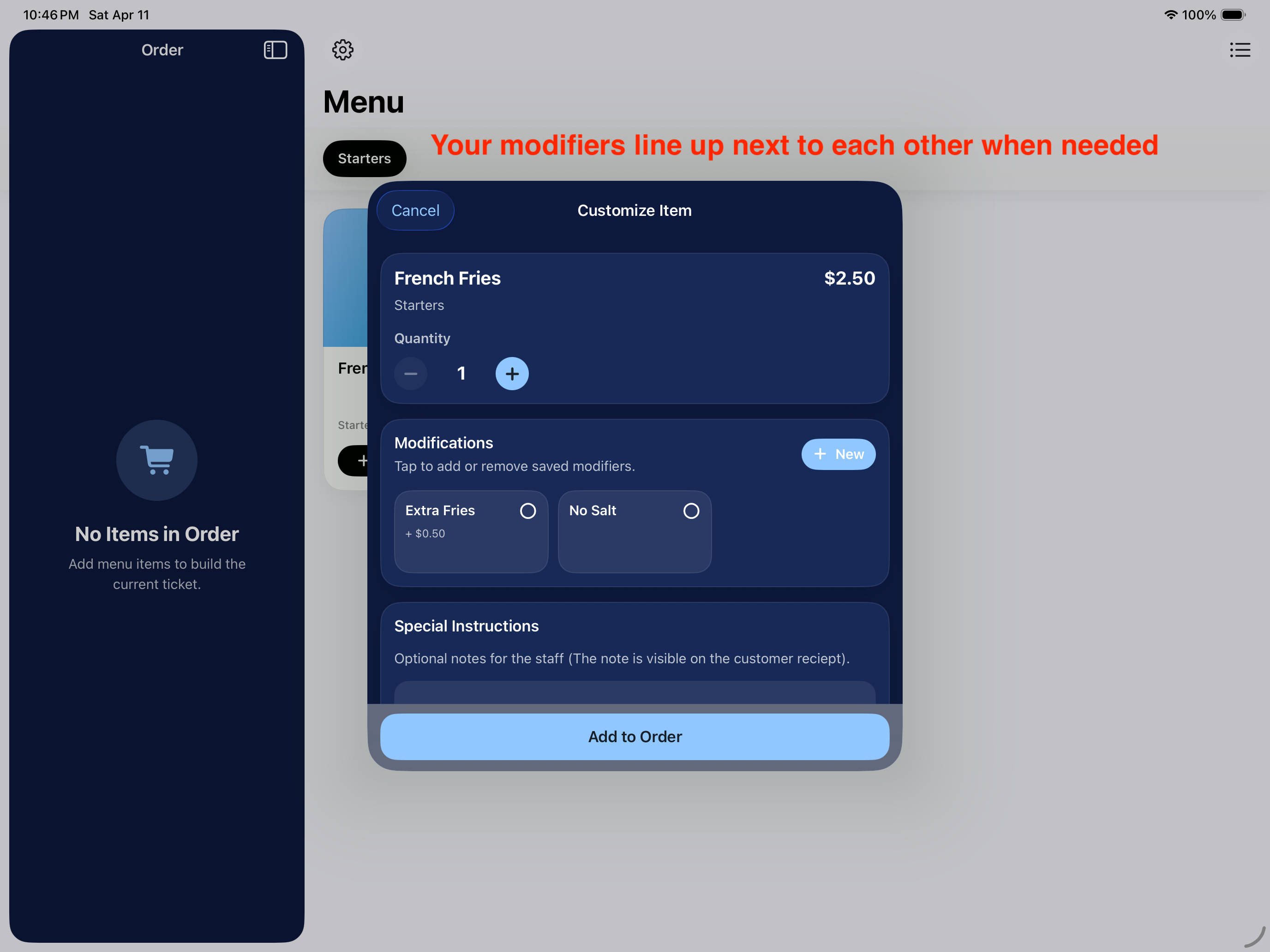
Your modifiers line up next to each other when needed
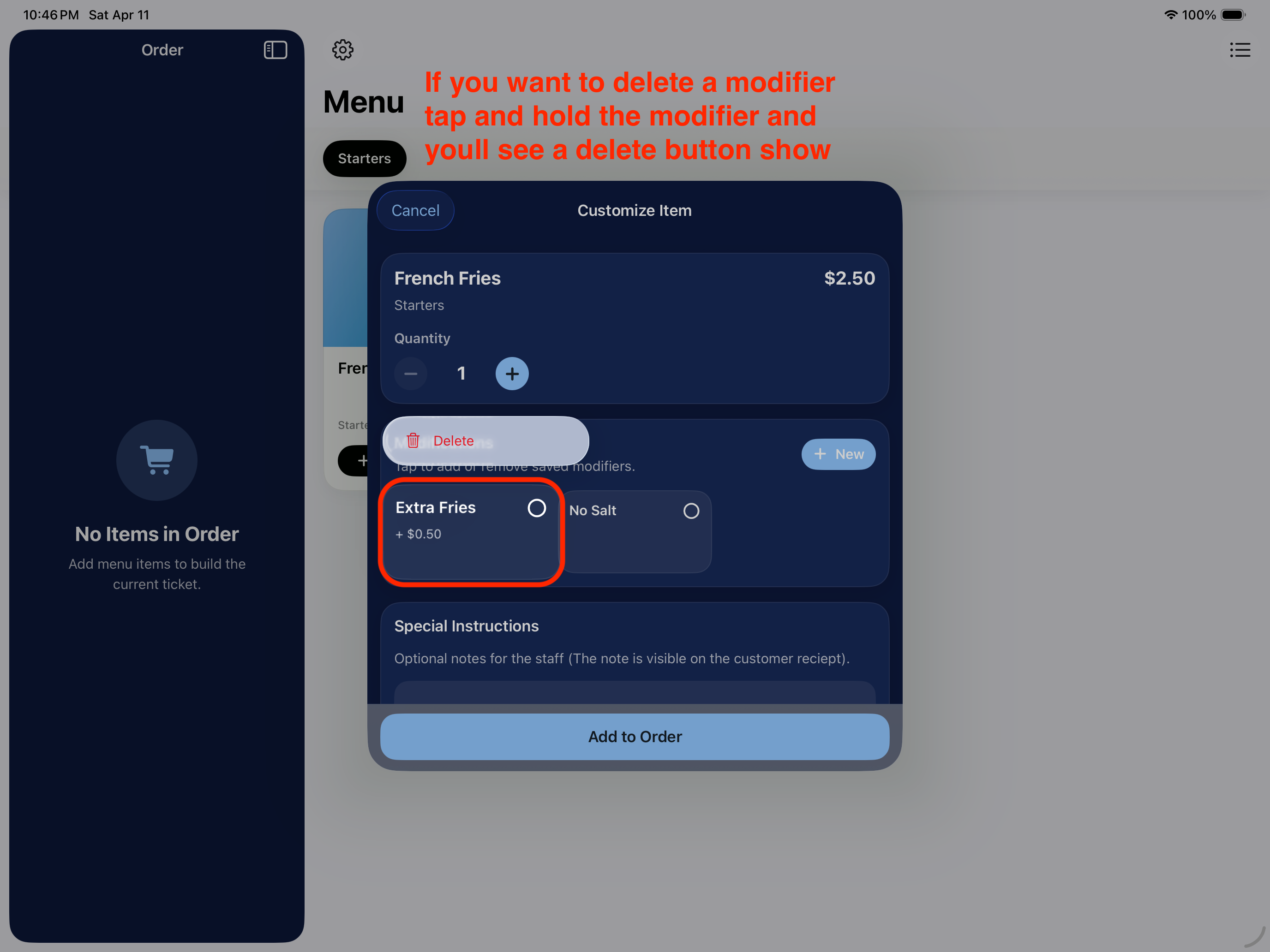
If you want to delete a modifier tap and hold the modifier and youll see a delete button show
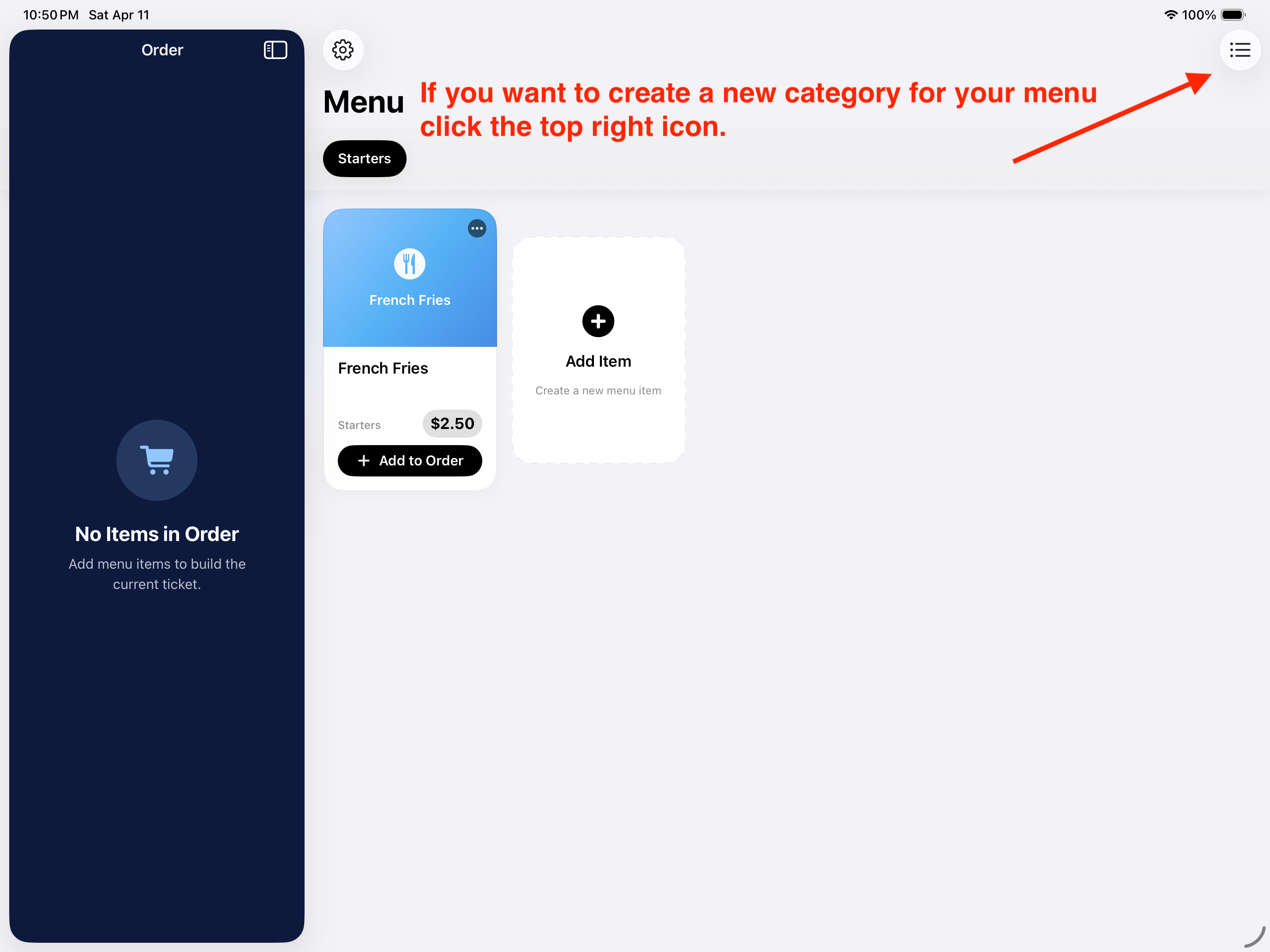
If you want to create a new category for your menu click the top right icon.
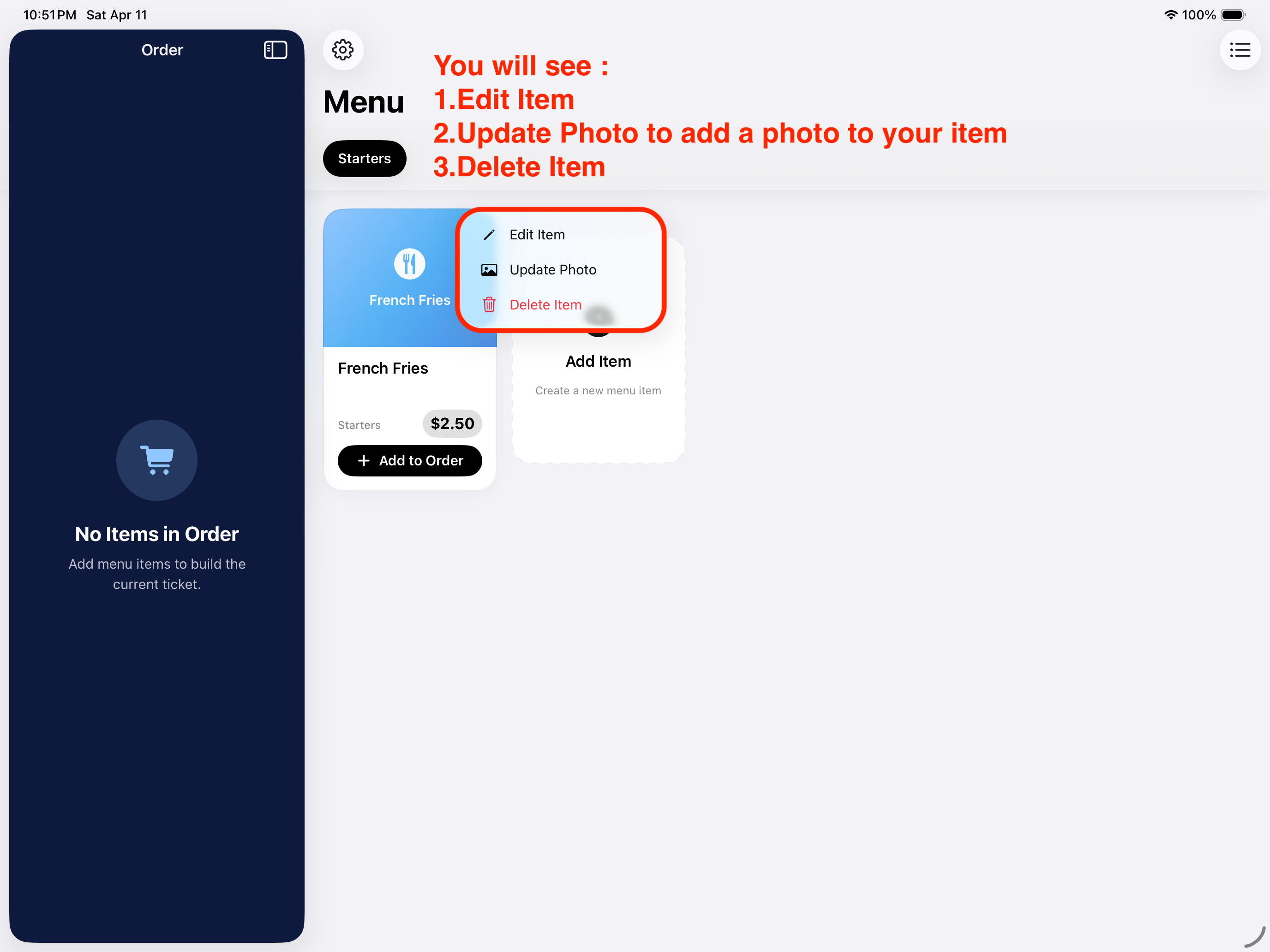
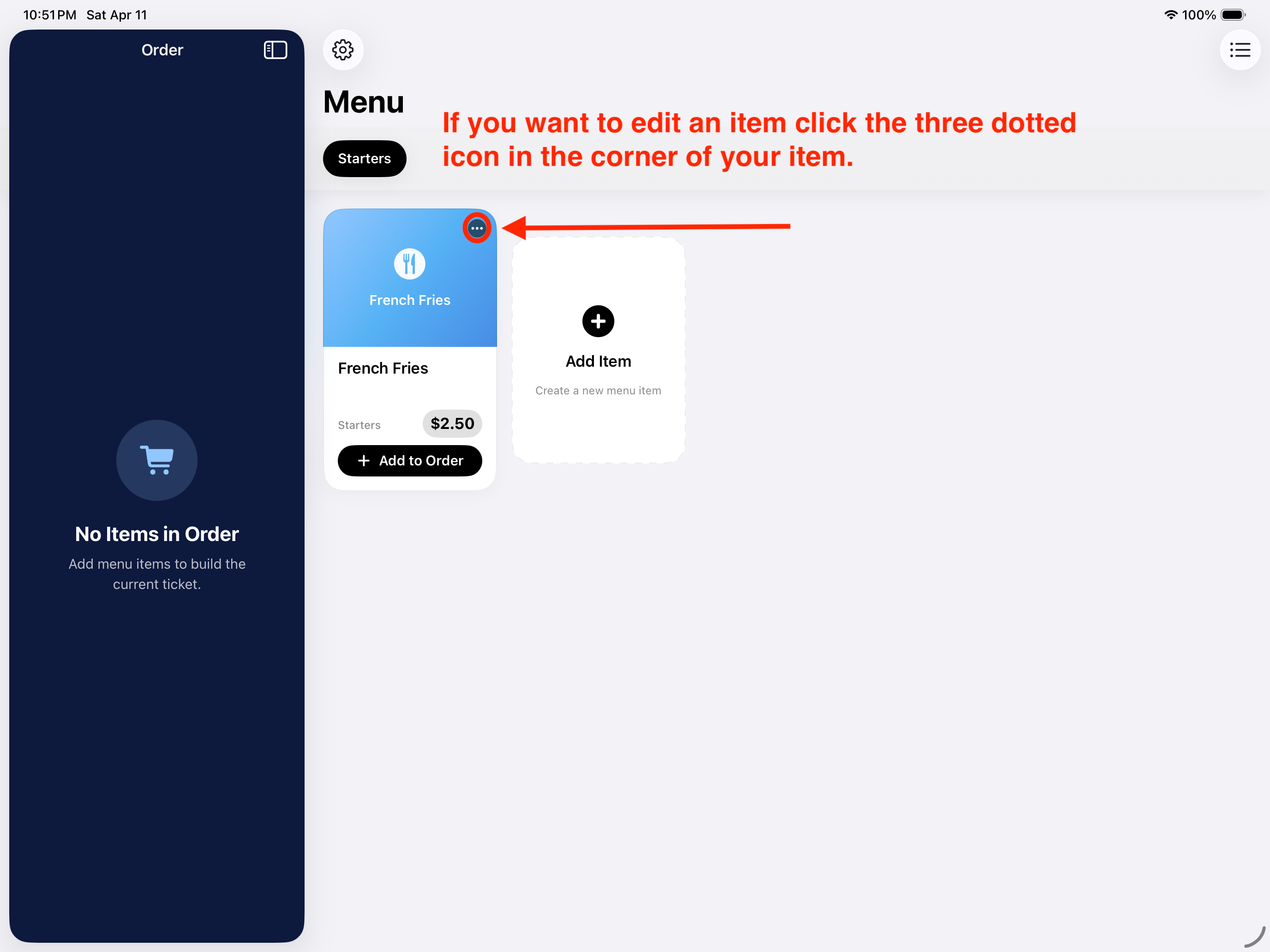
If you want to edit an item click the three dotted icon in the corner of your item.
You will see: 1. Edit Item 2. Update Photo to add a photo to your item 3. Delete Item